From sign-up to a finished page
The page is built from the products you keep in the ABS system. Below is the whole path: from the application to a menu a guest can read.
ABS panel →Fill in the application
You give the venue's name, tax number and address, plus the owner's e-mail and phone. The address is split into street, number, post code and city — registration requires it that way.
The page address is picked from two suggestions derived from the name and the tax number. A free-form one is not accepted: it has to be one of those two.
Nothing is reserved while the application is pending. If someone takes the address first, fetch the suggestions again.
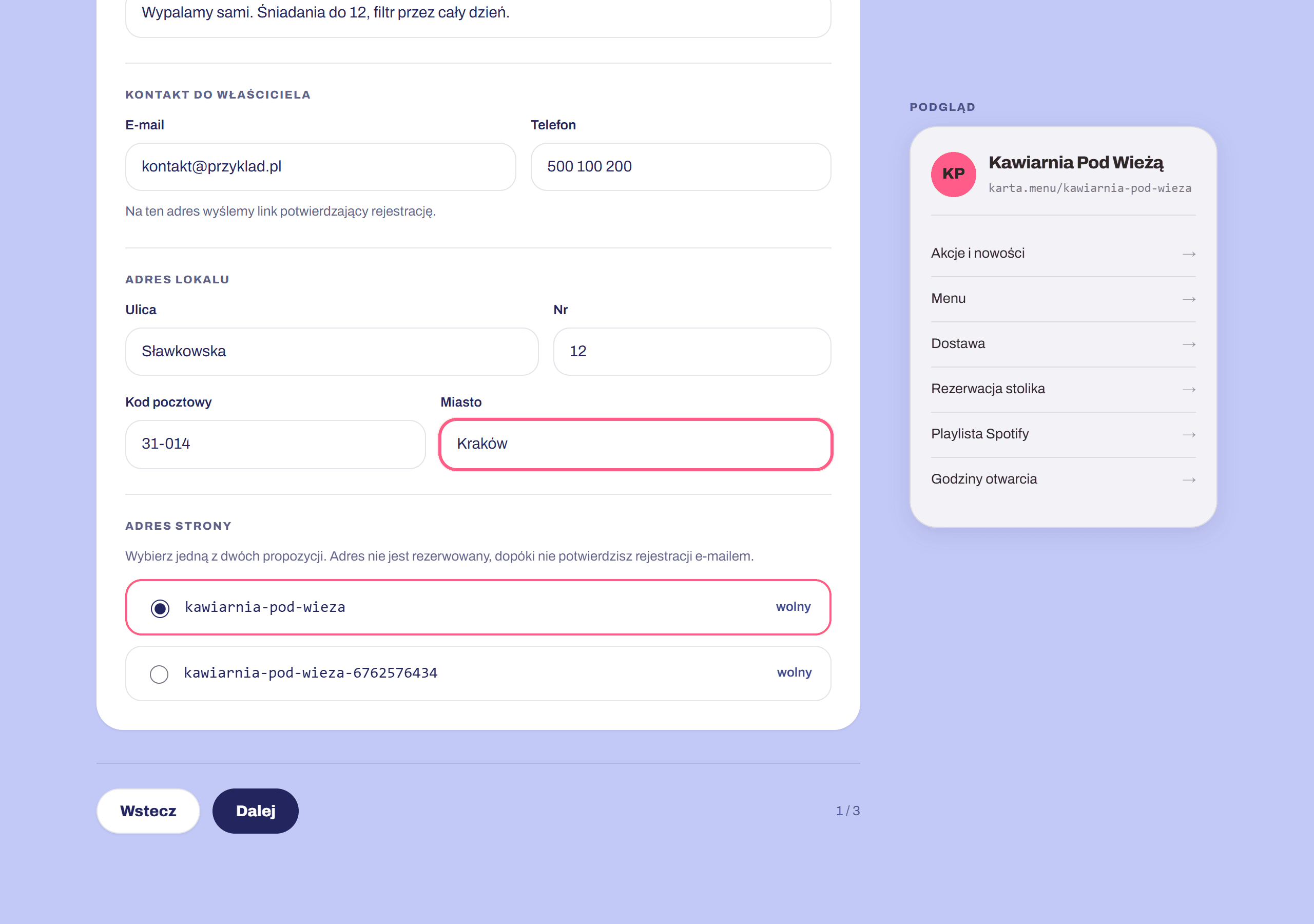
The venue's details and the two candidate addresses. Confirm by e-mail
A link arrives at the address you gave. Only clicking it creates the account — until then the application merely waits.
Activation sends you the credentials for the ABS panel. The same login and password sign you into Easy Menu later; we do not issue a separate password.
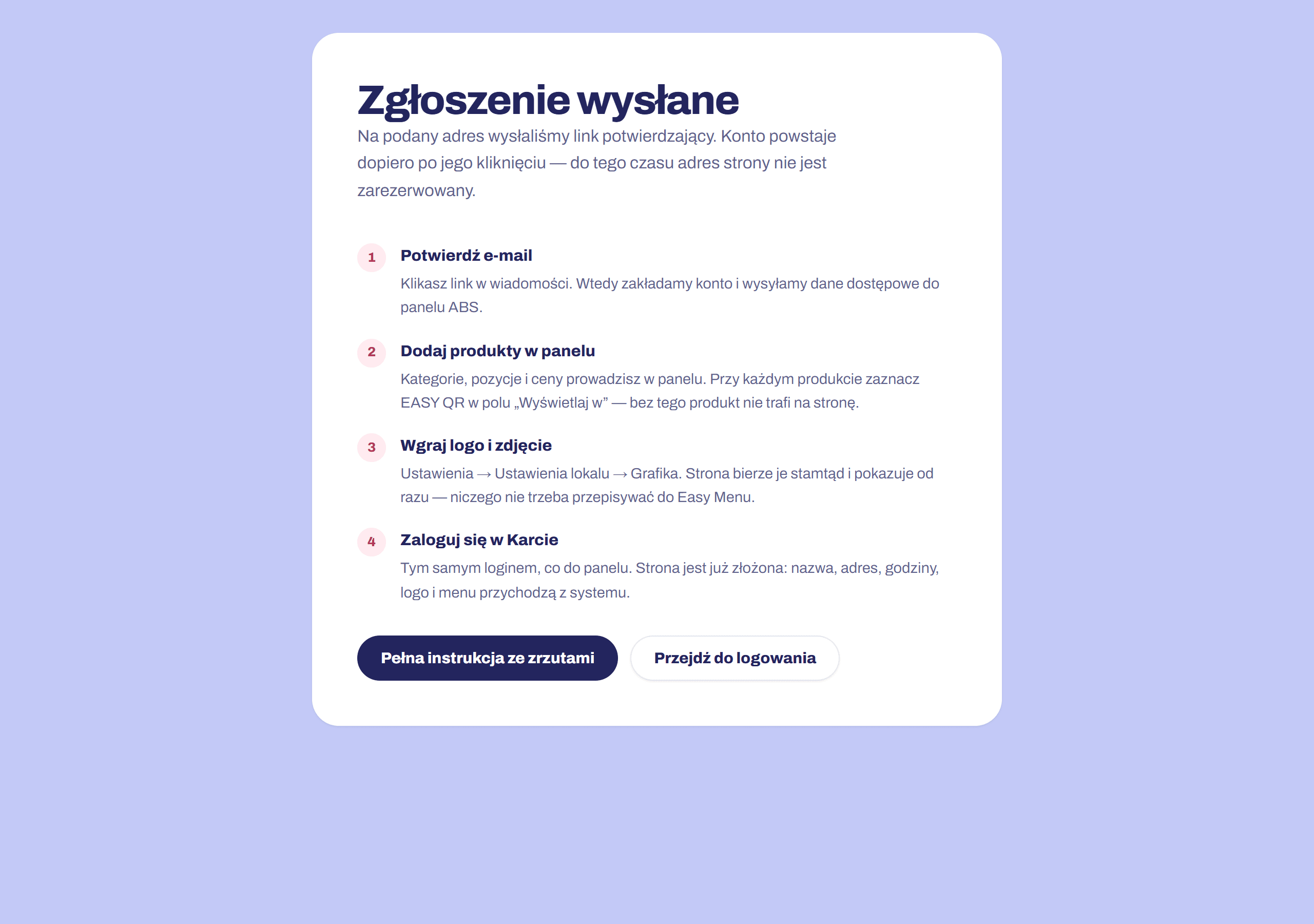
What you see once the application is sent — then you wait for the e-mail. Sign in to the ABS panel
The panel is where categories, products and prices live. Easy Menu copies none of it — it reads them as they are, so a price changed in the panel is on the page immediately.
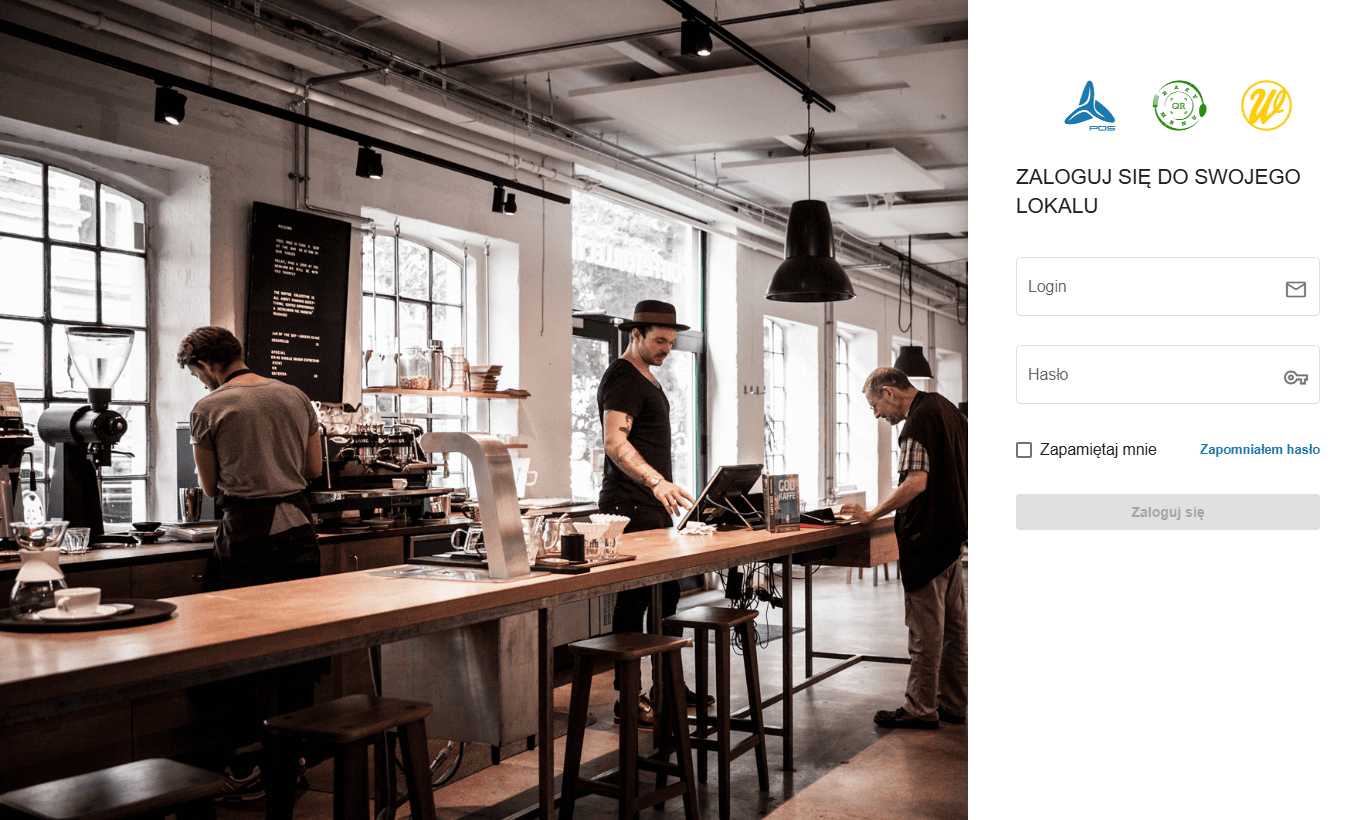
The panel's sign-in screen. Add categories and products
In the left menu: Baza danych → Towarów i kategorii → Produkty, then the „Nowy produkt” button. Categories are next to it, under „Kategorie”.
On the „Podstawowe informacje” tab you fill in the name, the category and the VAT rate; the price is set on the „Warianty” tab. Name and description take a Polish and an English version — the page shows whichever matches the guest's language.
The order of categories in the panel is the order on the page.
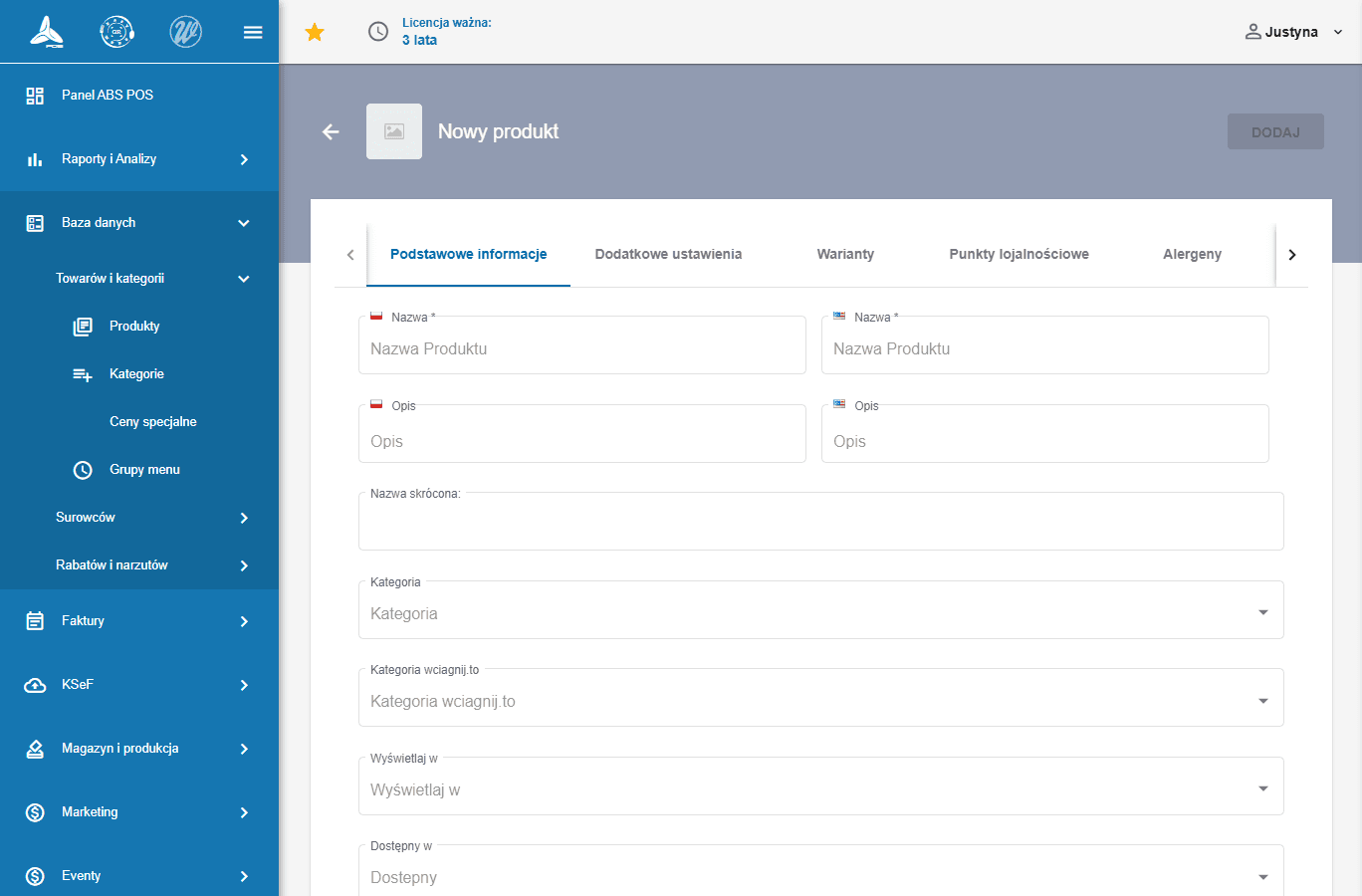
A new product, the „Podstawowe informacje” tab. Tick EASY QR under „Wyświetlaj w”
This is the one step nothing works without. In the product form, open „Wyświetlaj w” and tick EASY QR. It is a multi-select: a product can go to the till, to wciągnij.to and to the page at the same time.
A product without that tick stays in the system and never reaches the page. It applies to each product separately, including ones added later.
Do not confuse it with „Dostępny w” just below: that one sets delivery, takeaway and eat-in, not channels. Ticking a category is not enough either — channels live on the product.
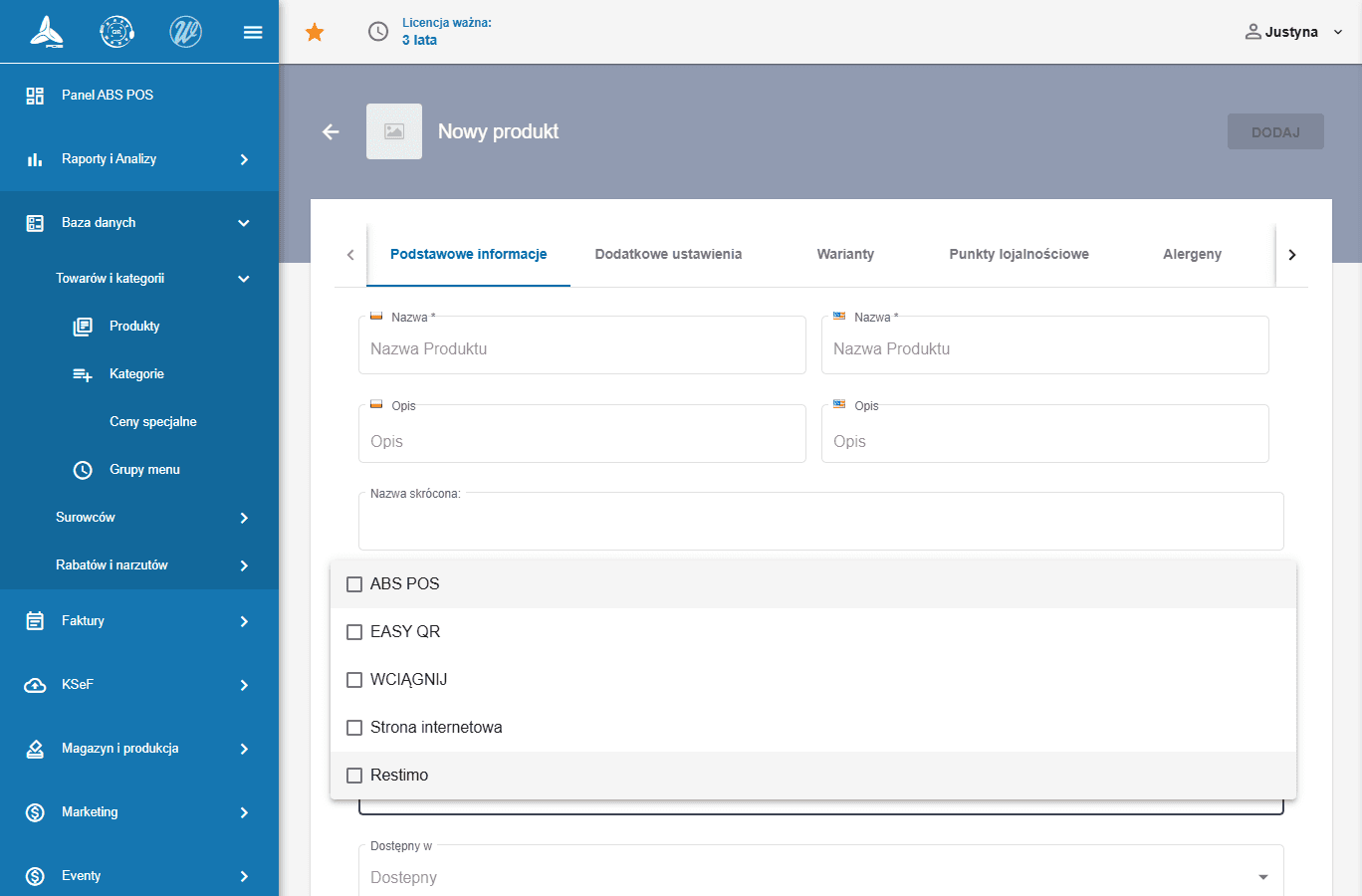
„Wyświetlaj w” expanded — EASY QR is second on the list. Upload a logo and a background photo
Ustawienia → Ustawienia lokalu → the „Grafika” tab. „Wybierz plik” uploads each image; „ZAPISZ” at the top saves them.
The page uses two of those fields: „LOGO RESTAURACJI” becomes the circle beside the name, and „ZDJĘCIE W TLE” becomes the photo across the top.
Neither is required: without a logo the page shows the venue's initials, and without a photo a neutral background.
You can also upload different files straight in the builder, under „Wygląd”. The card then shows those instead, and the rest of the system keeps the panel's.
„ZDJĘCIE RESTAURACJI” and „GALERIA” on the same tab do not reach the page — other parts of the system use those.
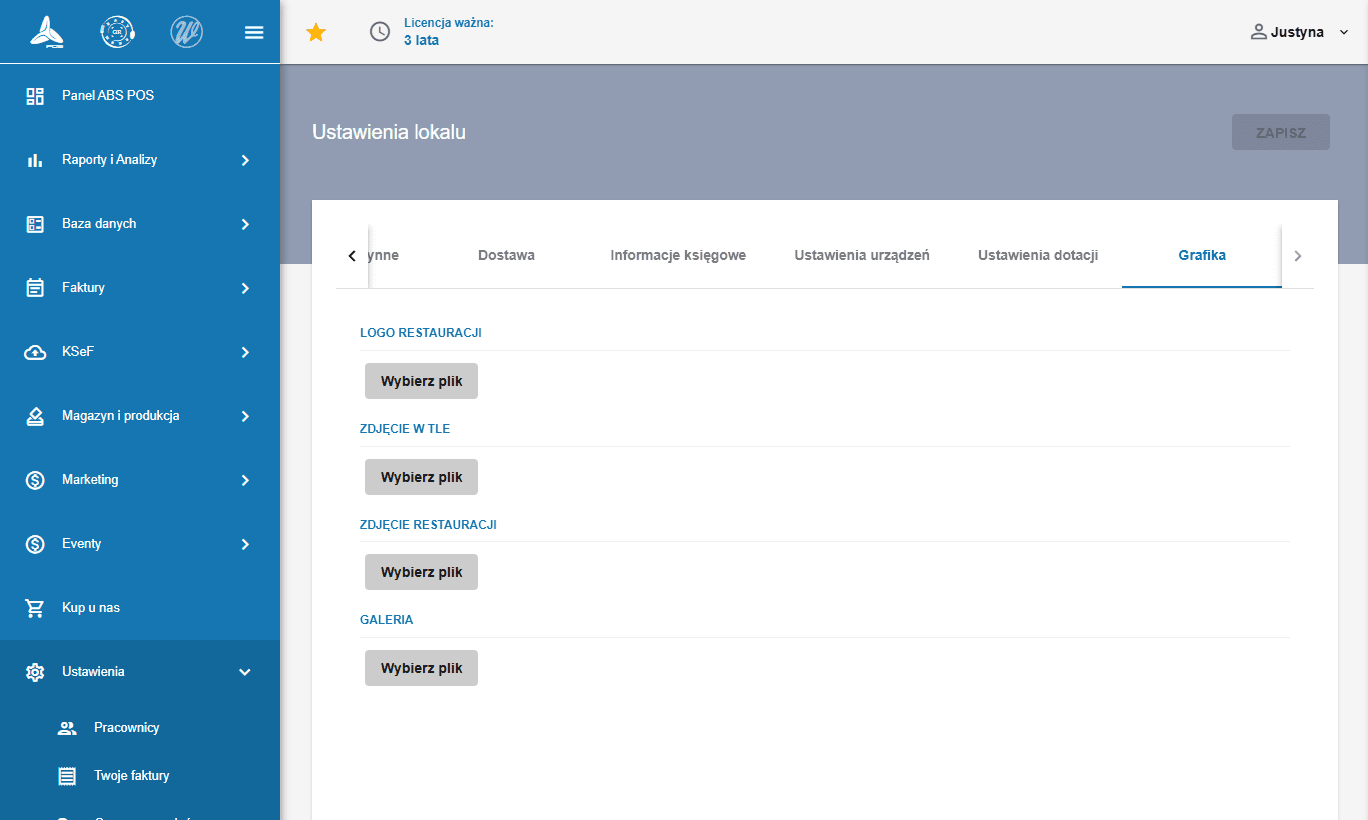
The „Grafika” tab in the venue settings. Sign in to Easy Menu
With the same login as the panel. The page assembles itself: name, address, opening hours, logo, venue photo and menu all come from the system.
What is left to you is the order of the blocks, the delivery and social links, and the colours.
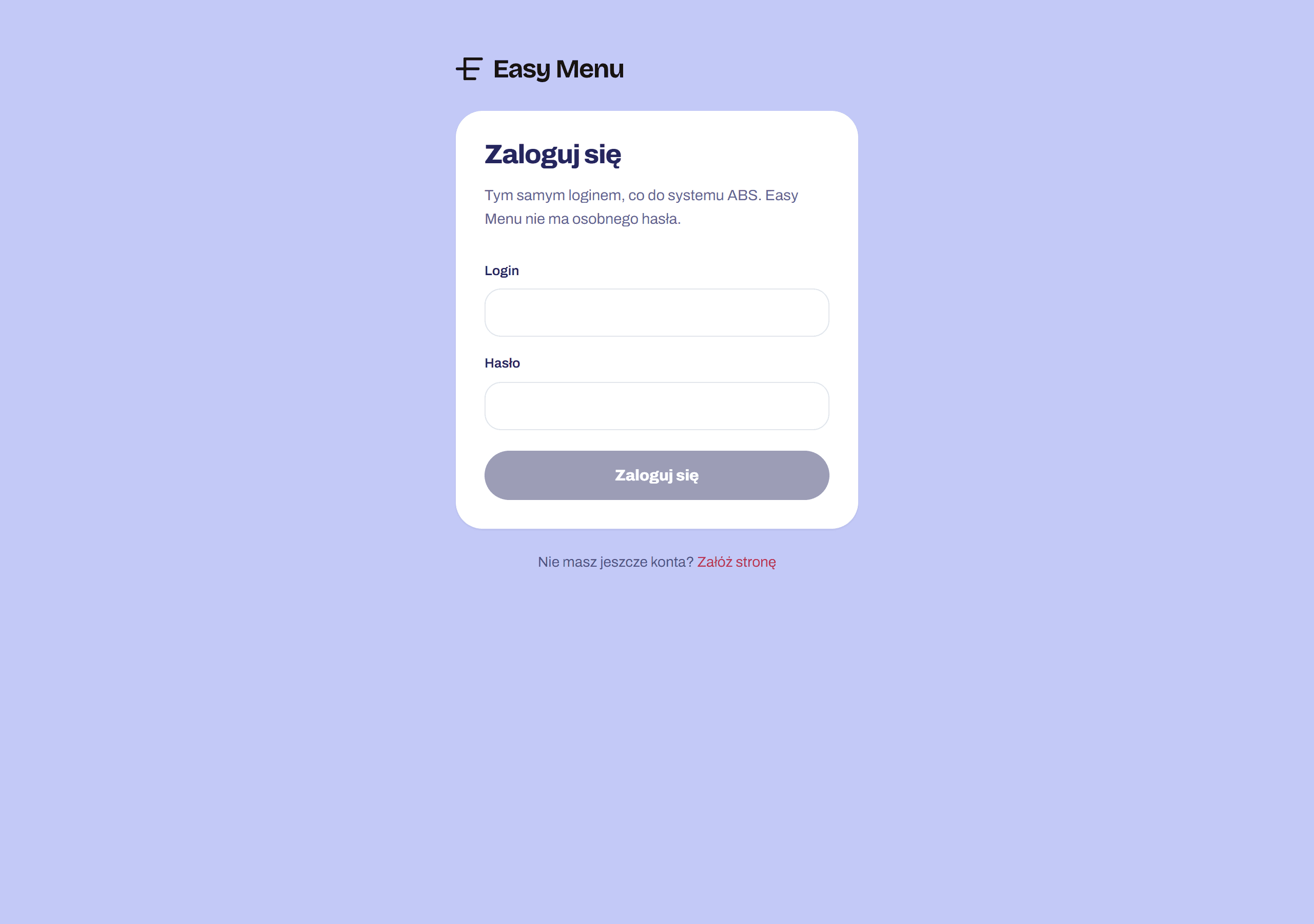
Signing in to Easy Menu — the same credentials as the ABS panel.
When something does not work
The menu on the page is empty
No product has the Easy QR channel ticked. Channels are set on each product separately.
Only some items show
The rest are missing the Easy QR tick, are switched off, or are marked out of stock. Only enabled, in-stock products reach the page.
I changed a price and the page shows the old one
Reload the page. The menu is read on every visit and nothing is stored, so an old price means a page loaded earlier.
Opening hours say “Open 24h”
That is what a venue with no hours filled in looks like. Fill them in the panel and the page picks them up by itself.